- npp.8.9.8.1.Installer.arm64.exe6.3 MB31k downloads
- npp.8.9.8.1.Installer.exe6.5 MB406k downloads
- npp.8.9.8.1.Installer.x64.exe6.6 MB2.3M downloads
- npp.8.9.8.1.Installer.x64.msi7.5 MB398k downloads
- npp.8.9.8.1.portable.7z5.5 MB4.8k downloads
- npp.8.9.8.1.portable.arm64.7z5.5 MB832 downloads
- npp.8.9.8.1.portable.arm64.zip7.7 MB3.5k downloads
- npp.8.9.8.1.portable.minimalist.7z3.7 MB1.3k downloads
- npp.8.9.8.1.portable.minimalist.arm64.7z3.7 MB665 downloads
- npp.8.9.8.1.portable.minimalist.x64.7z3.9 MB2.9k downloads
- npp.8.9.8.1.portable.x64.7z5.8 MB10k downloads
- npp.8.9.8.1.portable.x64.zip7.9 MB39k downloads
- npp.8.9.8.1.portable.zip7.5 MB6.4k downloads
Notepad++ download, installed in one command
Notepad++ is the free, open-source text and code editor for Windows. Paste one winget command into the Run box and Windows installs version 8.9.8.1 straight from the official GitHub release, the same file notepad-plus-plus.org links to, with its checksum verified on the way in.
- Free for any use under GPL-3.0, with no account or trial
- 29,541 GitHub stars and a release every few weeks
- Installer, ARM64, MSI and portable builds for every Windows PC
By Tabline Notes editorial teamChecked against Notepad++ 8.9.8.1, released September 24, 2026
- Independent guide · not affiliated with Don Ho and the Notepad++ team
- Free and open source · GPL-3.0, Windows
- Latest release 8.9.8.1 · September 24, 2026, official files
Install Notepad++ 8.9.8.1
Windows
Paste into the Run box (Win+R) or Windows Terminal:
winget install -e --id Notepad++.Notepad++ --accept-source-agreements --accept-package-agreements- Press Win+R
- Paste with Ctrl+V
- Press Enter
Package: Microsoft winget community repository; the manifest points at the official GitHub installer.
Or download the file directly from the official release:
Download 64-bit installer (.exe)Also on this release: ARM64 installer, 64-bit MSI (IT deployment), 64-bit portable .zip
Verify the download (SHA-256)
GitHub publishes this hash for npp.8.9.8.1.Installer.x64.exe. It must match exactly.
26f3bcced788fadbac4e7e577b430ea2ce6060cf3bcad993ef4612ecd7d743daPowerShell: Get-FileHash .\npp.8.9.8.1.Installer.x64.exe -Algorithm SHA256
Windows 8.1, 10 or 11 are supported; Windows 7 and 8 still run the current version without support.
Every file comes from github.com/notepad-plus-plus/notepad-plus-plus, the project's own v8.9.8.1 release, unmodified.
What is Notepad++?
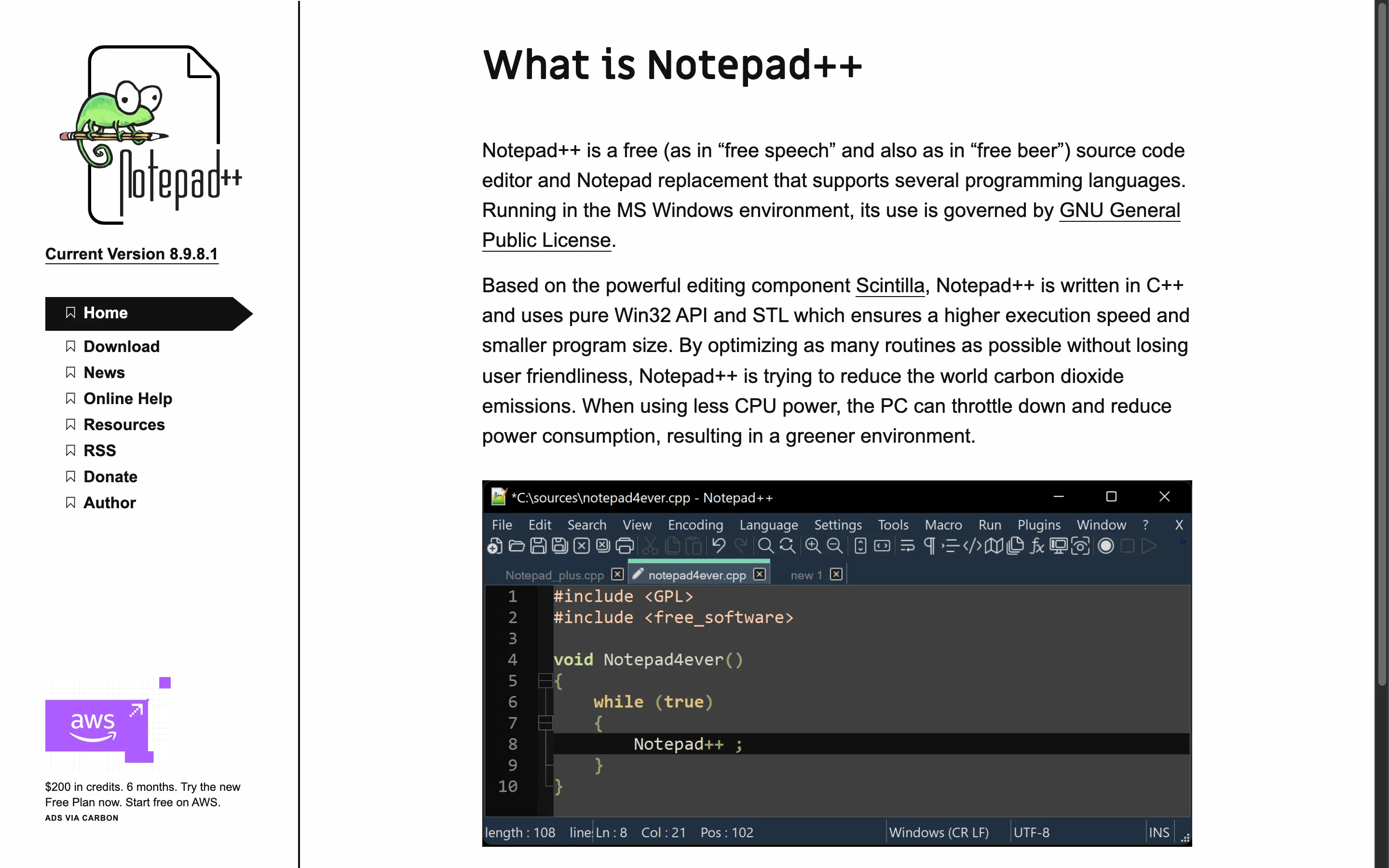
Notepad++ is a free source code editor and Notepad replacement for Windows, written by Don Ho and released under the GPL. It opens many files in tabs, highlights the syntax of around 80 programming languages, folds code and searches whole folders, while starting as quickly as the Notepad that ships with Windows.
People install it for everyday jobs that Windows Notepad handles badly: reading a log file with a hundred thousand lines, fixing a configuration file without breaking its encoding, comparing two versions of a script or replacing text across every file in a project with a regular expression. Because it is a native Win32 program rather than a browser engine in a window, it stays light on memory even with dozens of tabs open.
The project has published its source code on GitHub for years and ships new releases every few weeks. The current one is 8.9.8.1, released September 24, 2026; the official release notes list what each version fixed, including the security fixes that make staying current worth it.
Why download Notepad++ instead of another editor?
Notepad++ is the right pick when you want a fast, free Windows editor for text and code that you can install in a minute and never pay for. It is the wrong pick if you need macOS or Linux, or a full IDE with a debugger.
Open source under GPL-3.0
The full source is at notepad-plus-plus/notepad-plus-plus, and the licence lets anyone use, study and redistribute it, at home or at work, without a fee.
Signed, hashed releases
Each release lists a SHA-256 digest for every package and a GPG signature from key 0x8D84F46E, so you can prove the file you downloaded is the one the project built.
A build for every PC
64-bit, 32-bit and ARM64 installers, an MSI for managed networks, and portable zips that run from a USB stick without administrator rights.
Which Notepad++ download fits your PC?
Take the 64-bit installer unless one of the rows below describes you. Every file comes from the v8.9.8.1 release on GitHub and has its own SHA-256 digest on that page.
| Package | Pick it when | Admin rights |
|---|---|---|
| 64-bit installer (.exe) | A normal Windows 10 or 11 PC; this is what winget installs | Yes |
| ARM64 installer (.exe) | A Windows on ARM laptop, such as a Snapdragon Copilot+ PC | Yes |
| 32-bit installer (.exe) | An old 32-bit Windows installation | Yes |
| 64-bit MSI | IT departments deploying across an organisation; the developer recommends the .exe for everyone else | Yes |
| Portable .zip or .7z | A work PC where you cannot install software, or a USB stick; no context menu or file associations | No |
Package notes follow the official user manual. The 64-bit installer in this release is 6.6 MB.
How do I install Notepad++ in four steps?
Copy the winget command, paste it into the Run box with Win+R and Ctrl+V, press Enter and approve the administrator prompt. The whole install takes under a minute on a normal connection.
- Copy the winget command. Click Copy in the install panel. The command asks winget, the package manager built into Windows 10 and 11, for the package with the exact id Notepad++.Notepad++.
- Open the Run box and paste. Press Win+R, paste with Ctrl+V and press Enter. A console window opens, winget downloads the official 64-bit installer from GitHub and checks its SHA-256 against the manifest before running it.
- Approve the administrator prompt. The installer writes to Program Files, so Windows shows a User Account Control prompt. Choose Yes; winget then installs silently into %ProgramFiles%\Notepad++ and closes the window.
- Open Notepad++ from Start. Type Notepad++ in the Start menu. Right-clicking any file in Explorer now also offers Edit with Notepad++, which the installer adds to the context menu.
Prefer the file? The Download button in the panel fetches the same npp.8.9.8.1.Installer.x64.exe from GitHub. Run it, accept the prompt and keep the default components; the step-by-step version with every screen is theWindows 11 install guide.
What should I set up after installing Notepad++?
Three settings make the first week smoother: the update behaviour, the default encoding for new files, and the plugins you actually need. None of them requires a restart.
- Choose how updates arrive. Under Settings, Preferences, MISC, the auto-updater can prompt at launch, prompt at exit or stay off. If you installed with winget, you can also leave it off and update with one command.
- Set UTF-8 for new documents. Settings, Preferences, New Document lets you pick the encoding and line endings every new file starts with, which avoids mangled accents in files shared with other systems.
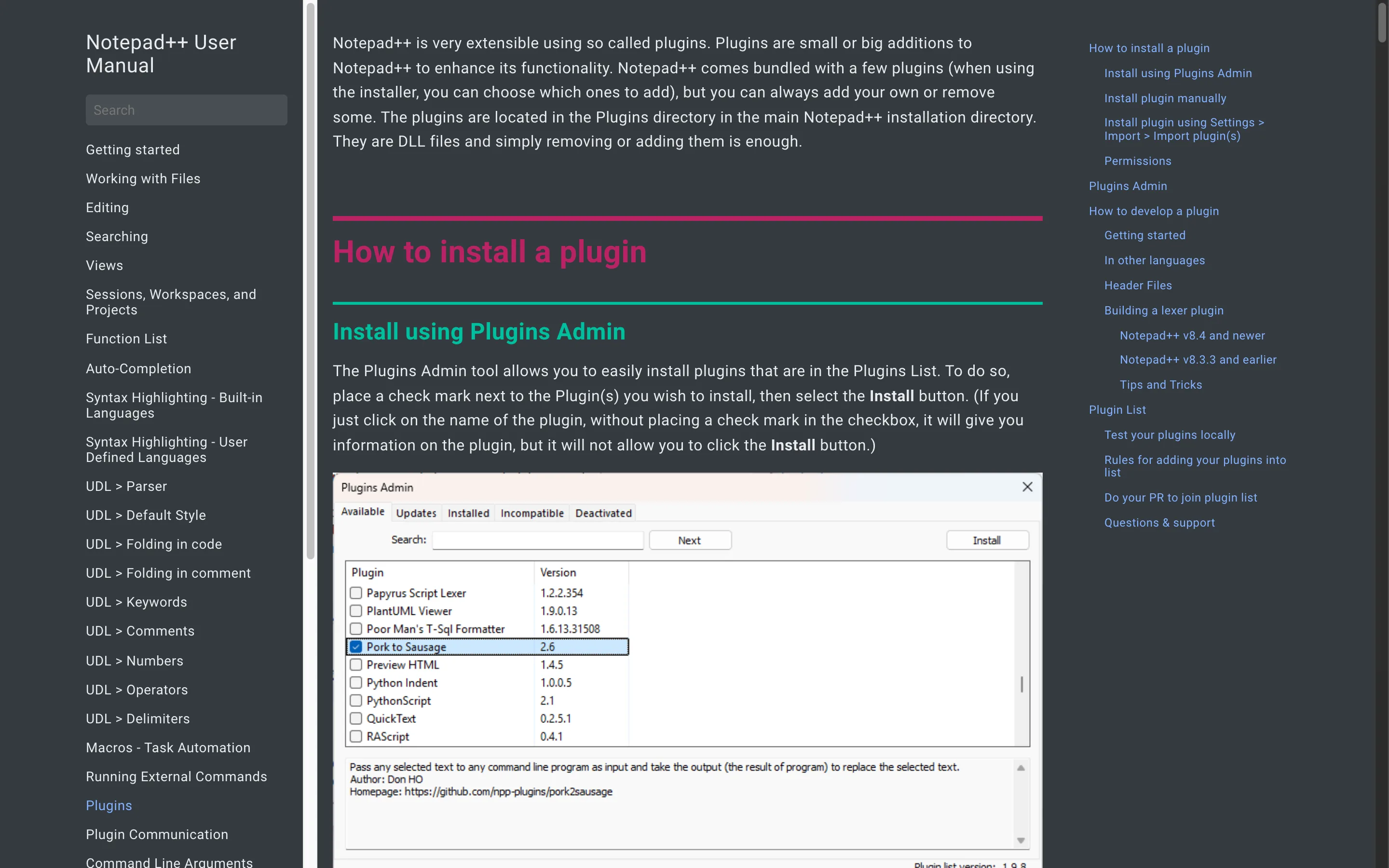
- Add plugins with Plugins Admin. The Plugins menu opens a list of reviewed plugins such as Compare and XML Tools; tick one and choose Install. The plugins guide covers the useful ones.
How does Notepad++ compare with other Windows editors?
Notepad++ is the lightest free option with real code-editing features; VS Code is the better choice for large projects and other operating systems, and Windows Notepad is enough for a quick note.
| Feature | Notepad++ | VS Code | Sublime Text | Windows Notepad |
|---|---|---|---|---|
| Price | Free | Free | US$99 personal licence | Included with Windows |
| Licence | GPL-3.0 | MIT source; Microsoft licence for the official build | Proprietary | Proprietary |
| Systems | Windows only | Windows, macOS, Linux | Windows, macOS, Linux | Windows only |
| Built on | Native Win32 and Scintilla | Electron | Native | Native |
| winget id | Notepad++.Notepad++ | Microsoft.VisualStudioCode | SublimeHQ.SublimeText.4 | Built in |
Sources: VS Code licence, Sublime Text store. The full comparison with who should pick which is in Notepad++ vs VS Code.
What goes wrong with a Notepad++ download?
Almost every problem comes from where the file was downloaded, not from Notepad++ itself. Search ads and download portals are the usual cause.
- Clicking a search ad. The official download page itself warns about malicious ads; type notepad-plus-plus.org yourself or use winget, which cannot be redirected by an ad.
- Using a portal's wrapped installer. Portals repackage the file with their own downloader. The genuine name looks like
npp.8.9.8.1.Installer.x64.exeand its hash matches the GitHub release. - Staying on 8.8.2 to 8.8.9. The user manual says those versions used a self-signed certificate and recommends upgrading immediately.
- Unzipping the portable build into Program Files. Notepad++ then ignores its local settings file and writes to %AppData% instead; keep portable copies in a folder you own.
The checks that settle any doubt, with the exact commands, are on how to download Notepad++ safely.
Official releases
All releases on GitHub- GitHub stars
- 29,541
- Downloads, last 3 releases
- 14.9M
- Latest version
- 8.9.8.1
8.9.8
v8.9.8
- npp.8.9.8.Installer.arm64.exe6.3 MB53k downloads
- npp.8.9.8.Installer.exe6.5 MB599k downloads
- npp.8.9.8.Installer.x64.exe6.6 MB3.6M downloads
- npp.8.9.8.Installer.x64.msi7.4 MB583k downloads
- npp.8.9.8.portable.7z5.5 MB8.3k downloads
- npp.8.9.8.portable.arm64.7z5.5 MB1.5k downloads
- npp.8.9.8.portable.arm64.zip7.7 MB5.2k downloads
- npp.8.9.8.portable.minimalist.7z3.7 MB2.1k downloads
- npp.8.9.8.portable.minimalist.arm64.7z3.7 MB1.2k downloads
- npp.8.9.8.portable.minimalist.x64.7z3.9 MB5.4k downloads
- npp.8.9.8.portable.x64.7z5.8 MB20k downloads
- npp.8.9.8.portable.x64.zip7.9 MB76k downloads
- npp.8.9.8.portable.zip7.4 MB10k downloads
8.9.7
v8.9.7
- npp.8.9.7.Installer.arm64.exe6.3 MB59k downloads
- npp.8.9.7.Installer.exe6.5 MB952k downloads
- npp.8.9.7.Installer.x64.exe6.6 MB5M downloads
- npp.8.9.7.Installer.x64.msi7.4 MB648k downloads
- npp.8.9.7.portable.7z5.5 MB8.7k downloads
- npp.8.9.7.portable.arm64.7z5.5 MB1.7k downloads
- npp.8.9.7.portable.arm64.zip7.7 MB5.8k downloads
- npp.8.9.7.portable.minimalist.7z3.7 MB2.3k downloads
- npp.8.9.7.portable.minimalist.arm64.7z3.7 MB1.4k downloads
- npp.8.9.7.portable.minimalist.x64.7z3.9 MB5k downloads
- npp.8.9.7.portable.x64.7z5.8 MB19k downloads
- npp.8.9.7.portable.x64.zip7.8 MB62k downloads
- npp.8.9.7.portable.zip7.4 MB10k downloads
Download counts come from GitHub and cover only the releases shown; winget and app-store installs are not counted.
Frequently asked questions
Is Notepad++ free?
Yes. Notepad++ is free software under the GNU GPL version 3. There is no paid edition, no trial and no account; donations to the project are optional.
What is the one-line command to install Notepad++?
winget install -e --id Notepad++.Notepad++ --accept-source-agreements --accept-package-agreements. Paste it into the Run box (Win+R) or Windows Terminal. It installs release 8.9.8.1, the same file the GitHub release publishes.
Which Notepad++ file should I download?
Most PCs need npp.8.9.8.1.Installer.x64.exe, the 64-bit installer. Windows on ARM laptops take the ARM64 installer, very old 32-bit systems take the plain Installer.exe, and the portable .zip suits PCs where you cannot install software. The MSI exists for IT departments.
Is Notepad++ available for Mac or Linux?
No. Notepad++ is a Windows program built on the Win32 API. On macOS and Linux, pick an editor made for those systems; the comparison guide lists cross-platform options and when each is the better choice.
Is it safe to download Notepad++?
Yes, from the official sources: GitHub releases, notepad-plus-plus.org or winget. Every release lists a SHA-256 digest and a GPG signature for each file. Avoid download portals and search ads; see how to download Notepad++ safely.
How do I update Notepad++?
Use ? then Update Notepad++ inside the editor, or run winget upgrade -e --id Notepad++.Notepad++. The built-in updater waits one to two weeks after a release before offering it, so the manual routes reach a new version sooner.
Notepad++ guides
Download and install
Setup and how-to
Published by Tabline Notes editorial team. Reference pages: release files and safe download checks.