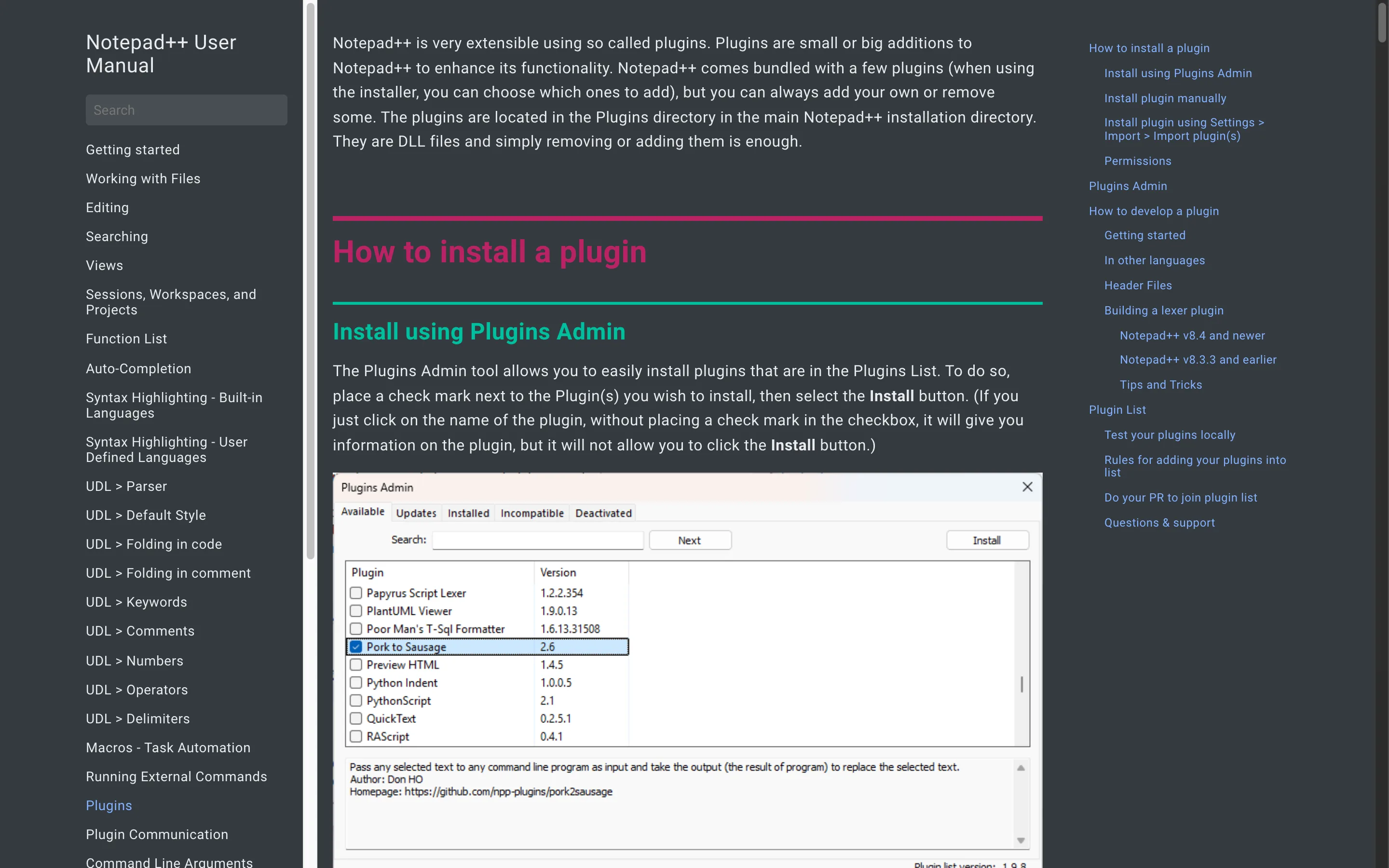
Install a Notepad++ plugin with Plugins Admin
- Open Plugins Admin. In Notepad++, open the Plugins menu and choose Plugins Admin.
- Find the plugin. In the Available tab, type part of the plugin name in the search box, for example Compare.
- Tick it and install. Tick the checkbox next to the plugin and click Install; Notepad++ asks to close and restart.
- Use the new menu entry. After the restart, the plugin has its own entry under the Plugins menu.
What are Notepad++ plugins?
Plugins are DLL files that add a feature Notepad++ does not have on its own, such as comparing two files side by side or pretty-printing XML. The official user manual describes them as small or big additions that plug into the editor; a few ship with the installer and about 200 more are listed in Plugins Admin for the 64-bit build. They live in the plugins folder of the Notepad++ installation, one sub-folder per plugin.
How do I install a plugin with Plugins Admin?
Plugins Admin is the built-in installer and the route the project recommends. It downloads plugins from the official plugin list, which records each plugin’s source and checksum.
- Open Plugins, then Plugins Admin.
- In the Available tab, search for the plugin by name.
- Tick its checkbox and click Install.
- Let Notepad++ close and restart; the plugin now has an entry under Plugins.
The same window has Updates and Installed tabs, which is where you update or remove a plugin later. After you upgrade Notepad++ itself, check the Updates tab once, because a plugin built for an older version may need a newer build.
Which plugins are worth installing first?
Install only what you will use; every plugin adds code to every Notepad++ start. These three answer the most common requests in the plugin list and on the Notepad++ community forum.
| Plugin | What it adds | Good for |
|---|---|---|
| Compare | Side-by-side diff of two open files with change markers | Checking two versions of a config file |
| XML Tools | Pretty print, validation and XPath queries for XML | Reading and fixing XML exports |
| JSTool | JSON and JavaScript formatting and a JSON viewer | Making minified JSON readable |
Each plugin page in Plugins Admin links to its own source repository, so you can read its licence and issues before installing it.
How do I install a plugin manually?
Manual installation is for plugins that are not in the Plugins Admin list. The user manual’s steps are: create a folder with the plugin’s exact DLL name (without .dll) inside the Notepad++ plugins folder, copy the DLL into it, and restart Notepad++. For an installed copy that folder is under %ProgramFiles%\Notepad++\plugins, so Windows asks for administrator approval. Only install a DLL from its author’s official repository; a plugin runs with the same rights as Notepad++ itself.
Why does a plugin stop loading after an update?
Plugin DLLs are built for one architecture, so a 64-bit Notepad++ cannot load a 32-bit plugin, and a plugin built against an older Notepad++ can stop working after an upgrade. If a plugin’s menu entry disappears, open Plugins Admin, check the Updates tab, and reinstall it from the Available tab so you get the build that matches your Notepad++. Keeping Notepad++ itself current is covered in the install guide.
Next: compare Notepad++ with VS Code if you are deciding which editor to keep.
Frequently asked questions
Why is Plugins Admin missing from my Plugins menu?
You are probably running the mini-portable (minimalist) package, which ships without plugins and without Plugins Admin. Use the full portable package or the installer, or install plugins manually as described on this page.
Do plugins need administrator rights?
They do for an installed copy in Program Files, because plugins are written into the installation's plugins folder. Notepad++ asks for elevation when it needs it. A portable copy in your own folder needs no administrator rights.