Your Notepad++ download is starting
Notepad++ 8.9.8.1 is on its way from the official GitHub release. While it lands, this page covers the first hour: finish the installer, check the file, choose how updates arrive, set the encoding and add the plugins you need.
By Tabline Notes editorial teamChecked against Notepad++ 8.9.8.1, released September 24, 2026
Download Notepad++ 8.9.8.1
Pick your system and the download starts.
Windows
Download 64-bit installer (.exe)Prefer the command line? Paste into the Run box (Win+R) or Windows Terminal:
winget install -e --id Notepad++.Notepad++ --accept-source-agreements --accept-package-agreements- Press Win+R
- Paste with Ctrl+V
- Press Enter
Windows 8.1, 10 or 11 are supported; Windows 7 and 8 still run the current version without support.
What should I do in the first hour with Notepad++?
Finish the install, confirm the file is genuine, then spend a few minutes on updates, encoding and plugins. The eight steps below take about an hour including trying each feature, and every menu path comes from the official user manual.
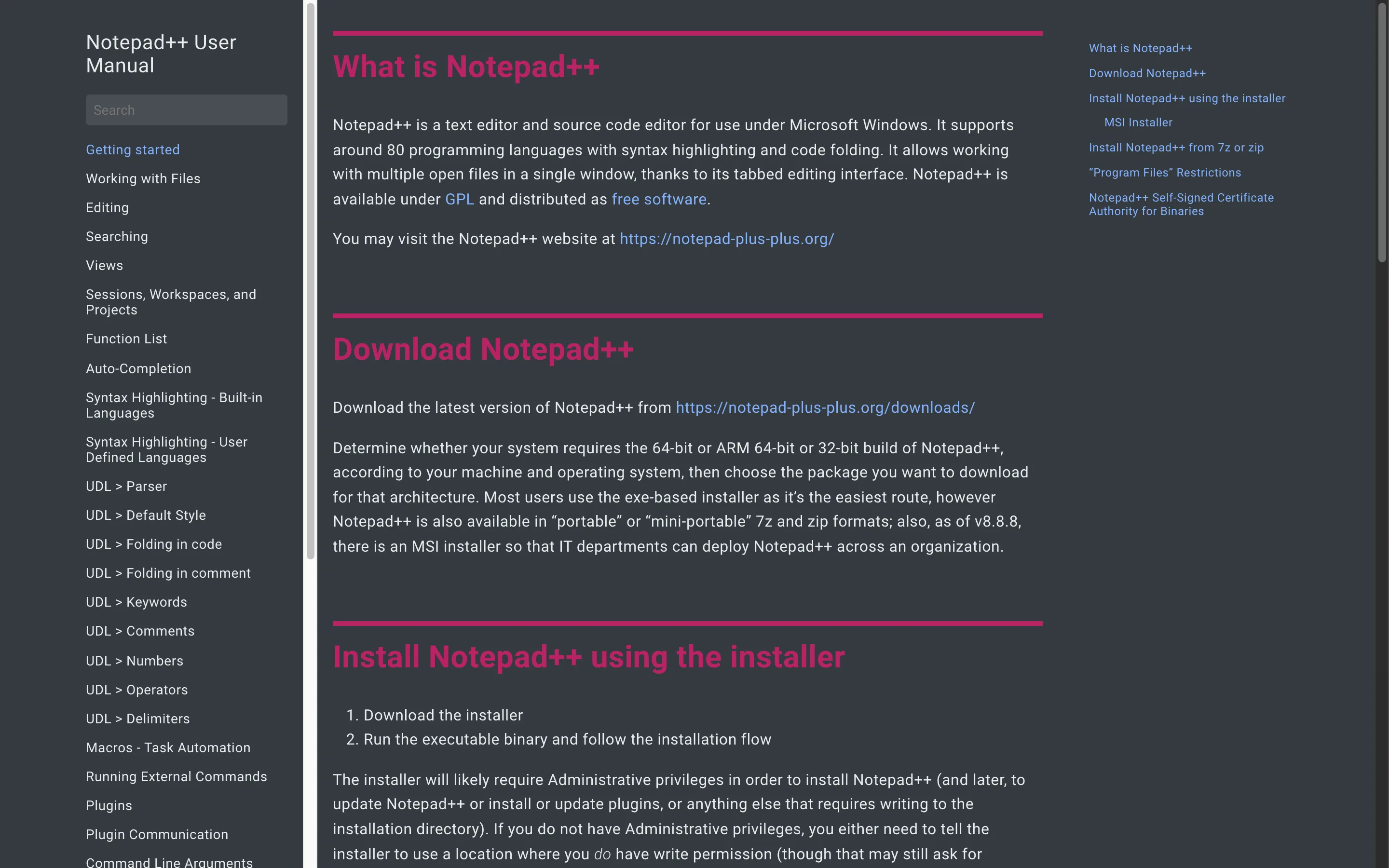
- Finish the installer. Open the downloaded .exe from your Downloads folder and choose Yes on the User Account Control prompt; the installer writes to Program Files. Keep the default components so Edit with Notepad++ appears on the Explorer right-click menu.
- Check the file first if you want certainty. Before running it, Get-FileHash in PowerShell gives the file's SHA-256. It must match the digest shown in the download box above and on the GitHub release; if it does not, delete the file.
- Choose how updates arrive. Settings, Preferences, MISC holds the auto-updater choice: prompt at launch, prompt at exit or off. The built-in updater waits a week or two after each release; winget upgrade gets a new version sooner.
- Set UTF-8 for new documents. Settings, Preferences, New Document sets the encoding and line endings every new file starts with. UTF-8 avoids mangled accents when files move between Windows, macOS and Linux.
- Pick a theme you can read all day. Settings, Style Configurator switches the colour theme; the installer ships several dark and light themes. Settings, Preferences, Dark Mode switches the window chrome to match.
- Add the plugins you need. Plugins, Plugins Admin lists reviewed plugins such as Compare and XML Tools. Tick one, choose Install and let Notepad++ restart; the plugins guide covers the useful ones.
- Open a folder as a workspace. File, Open Folder as Workspace shows a project folder in a side panel, so you can move between files without the Open dialog. It is the closest Notepad++ gets to a project view.
- Learn Find in Files. Search, Find in Files (Ctrl+Shift+F) searches or replaces across a whole folder, with regular expressions if you tick that option. It is the feature most people install Notepad++ for.
Two habits keep Notepad++ useful. Update when a release lists vulnerability fixes, because the editor opens files from anywhere. And save files in UTF-8 unless a program tells you otherwise, so the text reads the same on every machine it reaches.
Where to go next
- Every install route: winget, installer, MSI, portable
- Install plugins with Plugins Admin
- Notepad++ vs VS Code
- Check the download is genuine
- All guides
Frequently asked questions
My download did not start. What now?
Use the Download button above; it links straight to the v8.9.8.1 file on the official GitHub release. If your browser blocks it, open the release page and pick the file whose name is shown in the box.
Do I need an account to use Notepad++?
No. Notepad++ has no account, no sign-in and no licence key. It runs as soon as the installer finishes.
How do I know the file is genuine?
It came from github.com/notepad-plus-plus/notepad-plus-plus release v8.9.8.1, published September 24, 2026. Compare its SHA-256 with the digest on the release; the download-safety page also shows how to check the GPG signature.
Where are my Notepad++ settings stored?
An installed copy keeps settings in %AppData%\Notepad++ by default, according to the user manual. A portable copy keeps them in its own folder.